
You’re running Google Ads, Facebook campaigns, and investing in SEO. Leads are coming in through your contact form. But when you open your CRM or check your form entries, every lead looks the same — a name, an email, and a message. No traffic source. No campaign name. No indication of whether this person came from a $50 ad click or a free organic search result.
WordPress form plugins — Contact Form 7, WPForms, Gravity Forms, Ninja Forms, and the rest — collect form submissions. That’s what they’re built to do. What they don’t collect is where the person came from. They capture the what but not the why. And without that context, you can’t tell which marketing channels are generating leads and which are burning budget.
This guide explains how to track lead sources in WordPress forms — what data you need to capture, why your forms miss it by default, and the three main ways to fix it.
Why Your WordPress Form Leads Have No Source Data
WordPress Forms Collect Submissions, Not Context
Every major WordPress form plugin stores the same basic data: the field values the visitor entered (name, email, phone, message) plus a timestamp. Some plugins also log the page URL where the form was submitted and the visitor’s IP address.
None of them capture traffic source data by default. They don’t record whether the visitor came from Google Ads, organic search, a LinkedIn campaign, or a referral link. They don’t read UTM parameters from the URL. They don’t detect click IDs like gclid or fbclid. That data exists in the visitor’s browser — in the URL, in cookies, in the HTTP referrer header — but the form plugin never looks at it.
The result: your form entries are a list of leads with no marketing context. You know who contacted you but not how they found you.
Five Reasons Leads Show as “Direct Traffic”
Even if you’ve tried to track lead sources before, you may have noticed that a frustrating number of leads still show up as “direct” or with no source at all. Here’s why:
- UTM parameters vanish during navigation. A visitor clicks your ad with
?utm_source=google&utm_medium=cpcin the URL. They land on your homepage, browse your services page, then submit your contact form on a third page. The UTMs were only in the original URL — by the time they reach the form, the parameters are gone. (This is the most common reason tracking data disappears.) - The HTTP referrer changes on every page view. The HTTP Referer header shows the previous page, not the original source. After one internal click, the referrer points to your own site — not to Google or Facebook.
- Browser privacy features restrict tracking. Safari’s Intelligent Tracking Prevention caps JavaScript-set cookies to 24 hours on landing pages from classified trackers and 7 days elsewhere. Firefox’s Enhanced Tracking Protection blocks third-party tracking scripts. These features reduce the window in which tracking data remains accessible.
- Caching can interfere with server-side tracking. Some WordPress caching configurations redirect URLs to their canonical form, stripping query parameters in the process. Others defer JavaScript execution, which can delay or prevent client-side UTM capture. Client-side JavaScript tracking typically bypasses this, but server-side approaches may be affected.
- Ad blockers suppress tracking scripts. Roughly a third of desktop users run ad blockers, which can prevent analytics and tracking scripts from loading entirely.
Why “Direct Traffic” Is Misleading: When your form plugin or CRM shows a lead as “direct traffic,” it usually doesn’t mean the person typed your URL into their browser. It means the tracking data was lost somewhere between the ad click and the form submission. The visitor almost certainly came from somewhere — you just don’t have the data to prove it.
The Complete Lead Attribution Dataset
A fully-attributed form submission includes far more than a traffic source label. Here’s the complete picture — every data point you should capture alongside every form entry:
| Data Field | What It Tells You | Example Value |
|---|---|---|
| Traffic source label | Auto-detected channel that brought the visitor | Google Ads, Organic Search, Meta Ads, Direct |
| utm_source | Platform or site that sent the traffic | google, facebook, newsletter |
| utm_medium | Marketing medium | cpc, organic, email, social |
| utm_campaign | Specific campaign name | spring-sale, brand-awareness |
| utm_term | Keyword (paid search) | wordpress form tracking |
| utm_content | Ad variation or link identifier | headline-a, sidebar-cta |
| Click ID | Platform-specific click identifier | gclid, fbclid, msclkid, li_fat_id, ttclid |
| Original referrer URL | The external site that sent the visitor | https://www.google.com/ |
| Landing page URL | First page the visitor saw on your site | /services/web-design/ |
| Conversion page URL | Page where the form was submitted | /contact/ |
Let’s look at why you need multiple data types — not just one.
Why UTM Parameters Alone Aren’t Enough
UTM parameters only exist when someone explicitly tags a URL — typically for paid campaigns, email links, or social posts. Organic search traffic doesn’t carry UTMs. Neither does direct traffic or referral traffic from other websites. If you rely solely on UTM tracking, you’ll have source data for your paid campaigns but blank fields for every other channel.
That’s a problem if organic search is your biggest lead source — and you’d never know it because none of those leads have attribution data.
Why Click IDs Alone Aren’t Enough
Click IDs like gclid (Google Ads), fbclid (Meta Ads), and msclkid, li_fat_id, and ttclid tell you which ad platform generated the click. But they don’t tell you the campaign name, the keyword, or the ad variation — that context comes from UTM parameters. And like UTMs, click IDs only exist on paid ad clicks. Organic, referral, and direct visitors don’t have click IDs at all.
Why Referrer Tracking Is Trickier Than It Sounds
The HTTP Referer header seems like it should solve the problem — it tells you where the visitor came from. But it has a critical limitation: it shows the immediately previous page, not the original external source.
Here’s a concrete example: a prospect finds you through Google search, lands on your blog post, clicks to your services page, then navigates to your contact form. When they submit the form, the referrer says yoursite.com/services/ — your own site. Google is nowhere in the data. The original source was lost the moment they clicked an internal link.
To get useful referrer data, you need to capture the original external referrer on the visitor’s first page load and store it in a cookie so it persists through internal navigation. This is the same cookie-based persistence approach used for capturing UTM parameters across pages.
Google Analytics vs Lead-Level Attribution
Before diving into implementation methods, it’s worth understanding two fundamentally different questions that people conflate when they say “lead source tracking”:
| Question | Google Analytics (Aggregate) | Lead-Level Attribution |
|---|---|---|
| What it answers | “How many form conversions came from organic search last month?” | “This lead — Jane Smith — came from the Google Ads brand campaign on March 5th” |
| Where you see it | GA4 dashboard, MonsterInsights reports | Form entries in WordPress, CRM records, email notifications |
| Granularity | Channel-level and campaign-level totals | Individual lead with full attribution trail |
| Best for | Budget allocation, channel optimisation | Sales follow-up, CRM enrichment, lead quality analysis |
| Requires | GA4 + form tracking plugin (e.g., MonsterInsights) | Attribution data captured with each form submission |
Google Analytics tells you how many leads came from each channel. Lead-level attribution tells you which specific leads came from each channel. You need GA for channel optimisation. You need lead-level data for sales context and CRM reporting. They complement each other — and this guide focuses on the second: attaching source data to individual form submissions.
How to Track Lead Sources in WordPress Forms
There are three main approaches, each with different trade-offs in complexity, coverage, and maintenance.
Google Analytics Form Tracking (Aggregate Only)
Plugins like MonsterInsights connect your WordPress forms to Google Analytics 4 and track form submissions as conversion events. Once configured, you can view form conversion counts segmented by traffic source in your GA4 reports.
This approach answers aggregate questions well: “How many form submissions came from paid search this month?” But it doesn’t attach source data to individual form entries. Your form plugin’s submission list still shows names and emails with no source context. If your sales team needs to know which campaign generated a specific lead, GA4 can’t tell them.
Use this method if you only need channel-level reporting and don’t need lead-by-lead attribution.
Hidden Fields and JavaScript (Manual Method)
This method captures attribution data directly with each form submission using hidden fields. The workflow:
- JavaScript runs on every page load and reads UTM parameters, click IDs, and the referrer from the URL
- The values are stored in first-party cookies so they persist across pages
- Hidden fields in your form pull the cookie values when the page loads
- When the visitor submits the form, the attribution data is included alongside their name and email
This is the approach we’ve detailed across the article series: populating hidden form fields with UTM parameters and click IDs. The JavaScript capture technique is the same whether you’re tracking gclid, fbclid, or msclkid, li_fat_id, and ttclid.
The method works, but it comes with real maintenance costs:
- Every form needs hidden fields. You must add hidden fields for each data point (utm_source, utm_medium, gclid, etc.) to every form on your site, using each plugin’s specific syntax.
- No automatic source detection. The JavaScript captures whatever’s in the URL, but it doesn’t label the traffic source. A visitor from organic search has no UTM parameters and no click ID — you’ll get blank fields with no indication they came from Google.
- Maintenance burden. Theme updates, plugin updates, or a site redesign can break the script or remove hidden fields without warning. New forms need manual configuration.
Use this method if you want full control over the implementation and are comfortable maintaining JavaScript and form configurations across your site.
Lead Attribution Plugin (Automated)
A lead attribution plugin handles the entire tracking workflow automatically — capture, persistence, source detection, and form integration — without hidden fields or custom JavaScript.
LeadSourcePro works like this:
- Capture. A lightweight vanilla JavaScript file (no jQuery) runs on every page load and reads UTM parameters, click IDs, the referrer URL, and the landing page from the visitor’s browser.
- Persist. The data is stored in a first-party cookie with a configurable conversion window (same session, 1 day, or 7 days). The referrer is also captured server-side via PHP as a fallback.
- Detect. LeadSourcePro auto-detects the traffic source and labels it: Google Ads, Meta Ads, LinkedIn Ads, Microsoft Ads, TikTok Ads, Organic Search, Direct, or Referral. No manual mapping required.
- Attach. When the visitor submits a form, LeadSourcePro hooks directly into the form plugin and attaches all attribution data. No hidden fields needed for the nine natively supported plugins: Contact Form 7, WPForms, Gravity Forms, Ninja Forms, Formidable Forms, Fluent Forms, Elementor Pro Forms, Forminator, and Jetpack Forms. A
[utm_tracker_fields]shortcode provides a fallback for any other form. - Report. Every submission appears in a WordPress dashboard with the full attribution trail — traffic source, UTM parameters, click IDs, landing page, and referrer. You can search, sort, filter, and export to CSV.
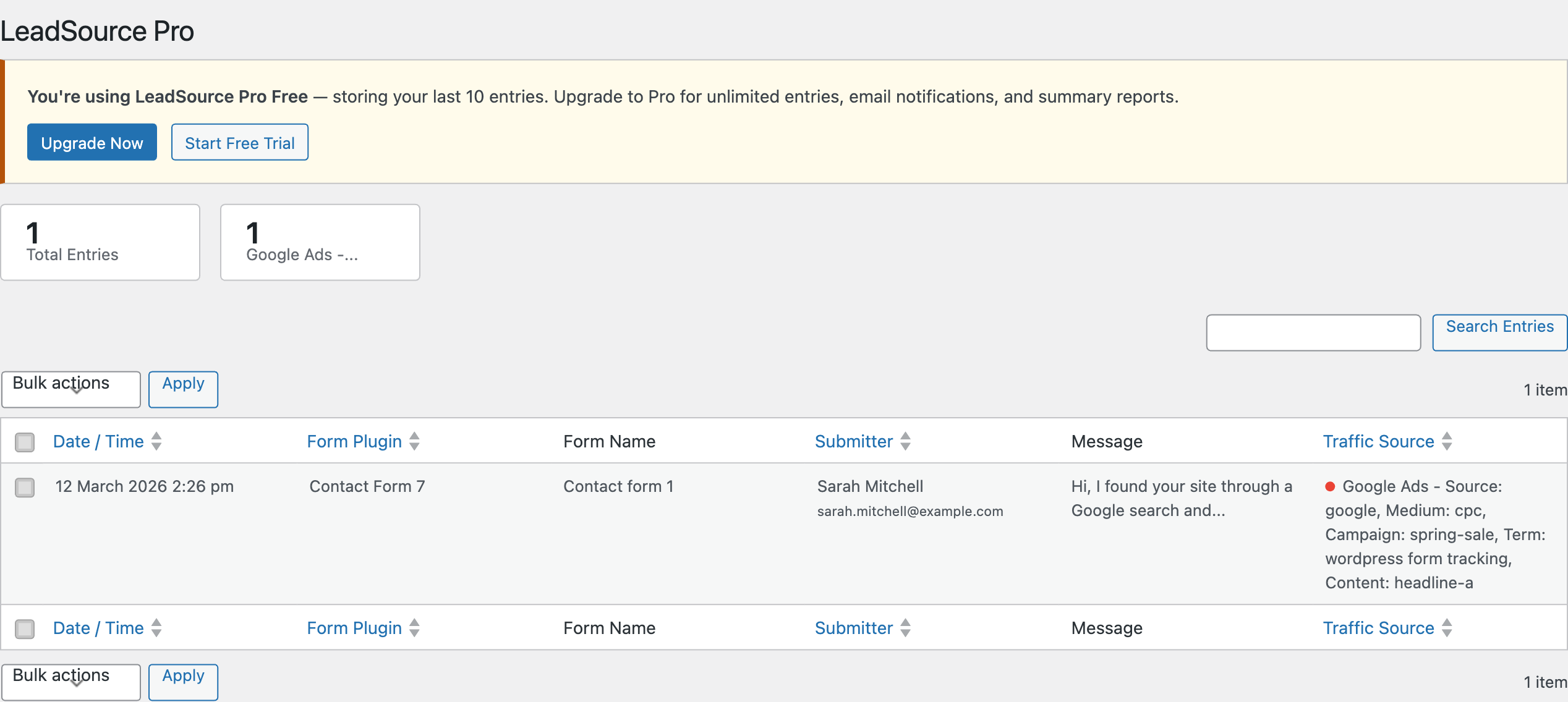
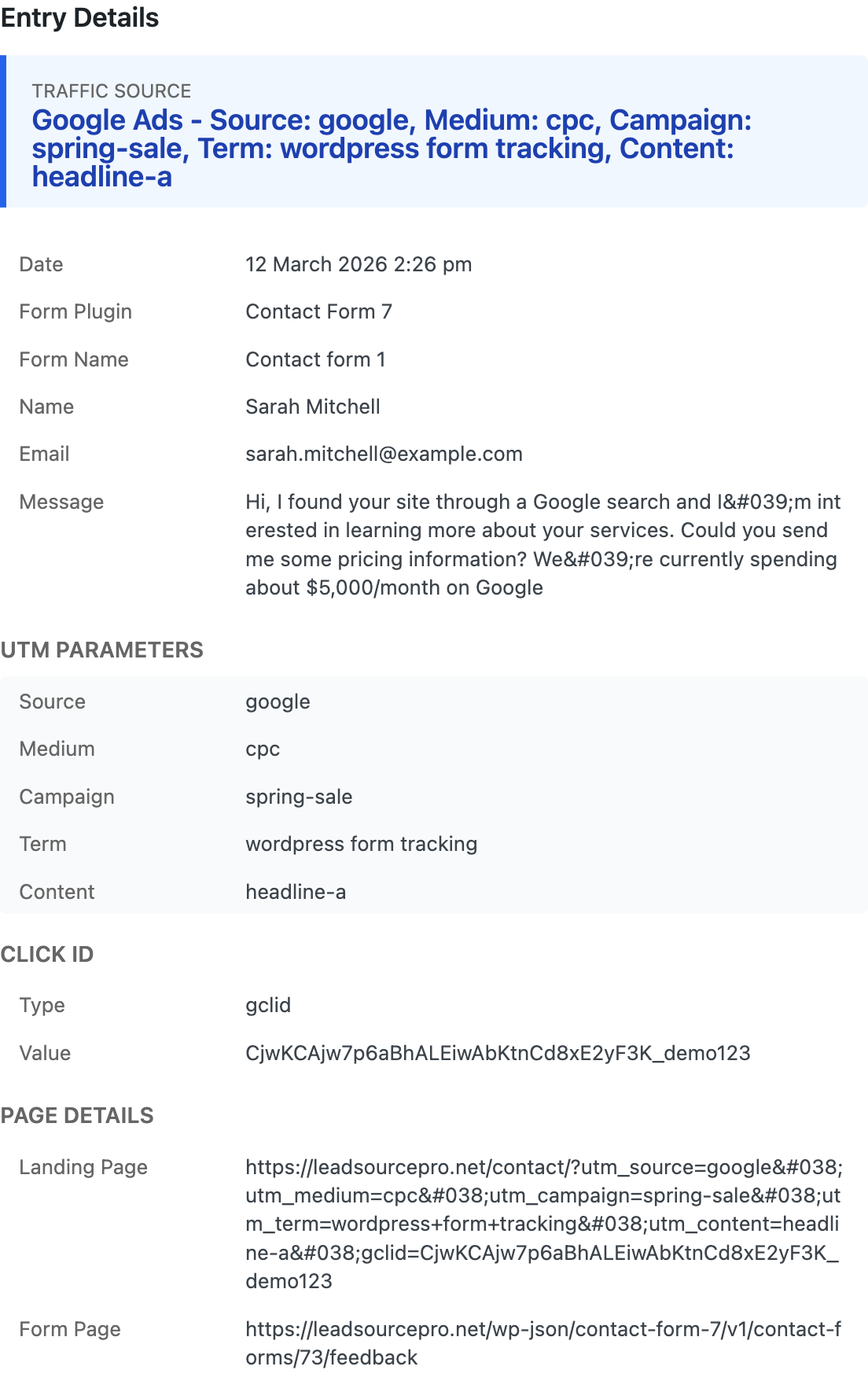
The key difference from the manual method: LeadSourcePro identifies traffic sources that don’t have UTM parameters or click IDs. When a visitor arrives from organic Google search, the plugin reads the referrer, recognises it as a search engine, and labels the lead “Organic Search” — even though there are no UTM parameters in the URL. The manual JavaScript approach can’t do this without additional source-detection logic.
Tracking Referrer URLs in WordPress Forms
Referrer data is especially important for traffic sources that don’t use UTM parameters: organic search, referral links from other websites, and organic social media shares. Without referrer tracking, these leads have no attribution data at all.
Original Referrer vs Current Referrer
The HTTP Referer header tells you the URL of the page the visitor just came from — but that changes on every click. After one internal navigation, the referrer points to a page on your own site. The original external referrer (Google, Facebook, a partner’s blog) is gone.
To capture the original referrer reliably:
- On the visitor’s first page load, check whether the referrer is an external domain (not your own site)
- If it’s external, store it in a first-party cookie
- On subsequent page loads, don’t overwrite the cookie — the original referrer should persist
- When the form is submitted, read the cookie and include the original referrer with the submission
This is the same cookie-persistence pattern used for UTM parameters and click IDs. LeadSourcePro captures the original referrer automatically — including a server-side PHP fallback for cases where JavaScript execution is delayed or blocked.
When Referrer Data Is Unavailable
Some scenarios produce no referrer at all. Visitors who type your URL directly, click a link in a native mobile app, or navigate from an HTTPS page to an HTTP page will have an empty referrer header. Browser privacy extensions can also suppress the referrer. In these cases, the lead is genuinely “direct” — and your attribution data should reflect that honestly rather than guessing.
Frequently Asked Questions
Do I need Google Analytics AND lead source tracking?
They serve different purposes. Google Analytics gives you aggregate reporting — total conversions by channel, conversion rates, user behaviour flows. Lead source tracking gives you per-submission attribution — which specific lead came from which campaign. If you want both channel-level budgeting insights and lead-level sales context, use both. If you only need to know which marketing source generated each individual lead, lead-level tracking alone is sufficient.
Which WordPress form plugins support lead source tracking?
The manual hidden-field method works with any form plugin that supports hidden fields — which is most of them. LeadSourcePro natively integrates with nine plugins: Contact Form 7, WPForms, Gravity Forms, Ninja Forms, Formidable Forms, Fluent Forms, Elementor Pro Forms, Forminator, and Jetpack Forms. A shortcode fallback covers any other form.
Does lead source tracking affect page speed?
Not meaningfully. The JavaScript that reads URL parameters and sets a cookie runs in microseconds — no external API calls, no additional HTTP requests. LeadSourcePro’s frontend script is vanilla JavaScript with no jQuery dependency and no impact on Core Web Vitals. The manual JavaScript method is similarly lightweight.
What happens if a visitor comes back days later before submitting a form?
It depends on the cookie duration. LeadSourcePro offers three conversion window options: same session (data clears when the browser closes), 1 day, and 7 days. If a visitor returns outside the conversion window, they’ll be treated as a new visit. For longer B2B sales cycles, the 7-day window captures most return visits. Beyond that, Safari’s ITP limits JavaScript-set cookies to 7 days regardless, making longer windows unreliable on Apple devices.
What happens if a visitor arrives from multiple channels before converting?
Most WordPress-based lead attribution tools — including LeadSourcePro — use first-touch attribution by default: the original traffic source is captured and persisted until the conversion window expires. If someone first clicks a Google Ad, leaves, then returns via an organic search and submits a form, the lead is attributed to Google Ads (the first touch). Multi-touch attribution models exist but typically require enterprise analytics platforms rather than WordPress plugins.
Know Where Every Lead Comes From
Every form submission without a traffic source is a missed opportunity to understand what’s working. When you can see that your Google Ads brand campaign generated 12 leads last month, your LinkedIn sponsored content brought in 5, and organic search delivered 20 — you can make real budget decisions instead of guessing.
The data you need is already in the visitor’s browser. UTM parameters, click IDs, and the referrer are all there when someone arrives on your site. The gap is that WordPress form plugins never look at that data. Close the gap with the manual JavaScript and hidden-field approach described in this series, or install LeadSourcePro and capture everything automatically.
Start Tracking Lead Sources in Under Two Minutes
LeadSourcePro captures traffic source, UTM parameters, click IDs, referrer, and landing page with every form submission — automatically. No hidden fields. No JavaScript to maintain. Works with nine form plugins out of the box.
Leave a Reply